Smart home automation has a reputation for being complicated, and some setups genuinely are. But getting started is easier than it's ever been: one hub, a handful of smart switches, and a few sensors will turn your home into something that actually works for you. Here's exactly where to start, and the expensive rabbit holes worth skipping.
By Colin B. · Published June 11, 2026 · Last reviewed June 11, 2026
A basic smart home (hub, a few plugs, a couple switches) runs $80-220. Cost compounds fast if you try to automate everything at once. Start with one room.
We earn commission on qualifying Amazon purchases — see our
affiliate disclosure.
Price tiers and budget totals shown above are editorial estimates;
actual Amazon prices vary.
At a glance
Our top pick in each category
The fastest path through this guide — each best-starter pick by category.
Scroll for the budget and upgrade alternatives.
Pick your ecosystem before you buy your first device. SmartThings and Amazon Alexa are the most compatible with third-party gear. Home Assistant and Hubitat give you full local control but require more setup. Mixing ecosystems is the primary cause of smart home frustration.
Wi-Fi devices are the easiest to start with (no hub needed, just a phone), but each one adds load to your router. If you plan more than 10-15 devices, Zigbee or Z-Wave gear on a dedicated hub runs faster and more reliably at scale.
Smart switches beat smart bulbs for overhead lighting. A smart bulb stops working the second someone flips the physical switch off. A smart switch lets anyone use the wall switch normally while still giving you full automation control.
The gear
What you actually need
Smart Hubs
The hub is the brain that connects devices from different brands and runs your automations. You don't strictly need one to start (Wi-Fi devices work without it), but a hub unlocks Zigbee and Z-Wave devices, which are faster and more reliable than Wi-Fi for large setups. The big decision is cloud-managed vs. local-first: cloud hubs are easier to set up; local hubs give you more control and keep working when your internet is down.
Smart Hubs — what's the difference?
A few common shapes, each making a different trade.
Cloud-managed
Easy setup, remote access built in, depends on vendor servers staying up.
Setup time
20-30 min
Internet required
Yes
Monthly fees
Usually none
Best for Most beginners, renters, anyone who wants it to just work
Tradeoff Vendor can change features or shut down without notice
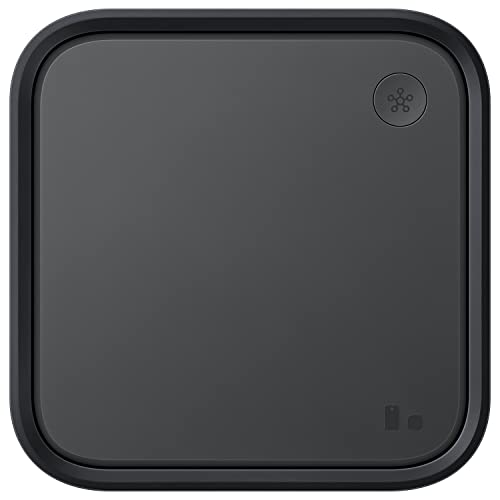
The SmartThings Station handles Zigbee, Z-Wave, and Wi-Fi devices natively, which means almost any smart device you buy will work. Samsung's app is polished, setup takes about 20 minutes, and the platform supports thousands of devices. It doubles as a 15W wireless charging pad.
What we like
Supports Zigbee, Z-Wave, Wi-Fi, and Matter in one device
Polished app, very broad third-party device compatibility
Doubles as a 15W wireless charging pad
What to know
Cloud-dependent; automations pause if Samsung's servers go down
Advanced features gated behind SmartThings Pro subscription
The Echo 4th Gen has a built-in Zigbee hub, so you can add Zigbee devices without a separate hub. It's the lowest-friction way to start if you already use Alexa for voice control. Works well for 5-15 devices; you'll outgrow it eventually.
What we like
Built-in Zigbee hub eliminates need for a separate hub device
Alexa voice control included, best-in-class wake word detection
Works out of the box in minutes with zero configuration
What to know
Primarily cloud-based; limited local automation processing
Hubitat processes everything locally on your home network. No subscription, no cloud dependency, and automations fire in under a second. It supports both Zigbee and Z-Wave with excellent device compatibility. The learning curve is steeper than SmartThings but much gentler than Home Assistant.
What we like
All processing is local, sub-second automation response
No subscription fees, no cloud account required
Strong Zigbee and Z-Wave device support with active community
What to know
Steeper setup than SmartThings or Echo
Web-based UI feels dated compared to modern app-based hubs
The most powerful home automation platform available, running fully open-source software on a dedicated box. Supports thousands of integrations, local voice processing, energy monitoring, and almost anything else you can imagine. Setup learning curve is real, but the community and documentation are exceptional.
What we like
Open-source, fully local, thousands of integrations available
No subscription ever; active community and excellent documentation
Supports voice, energy monitoring, cameras, and much more
What to know
Setup takes a weekend for beginners; YAML config for advanced use
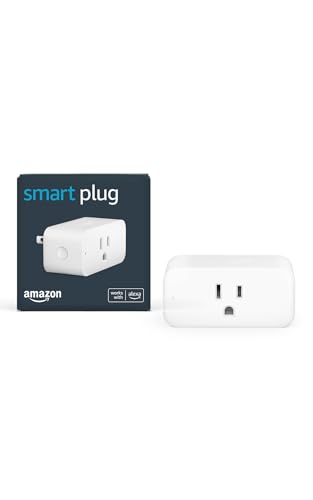
Smart plugs are the easiest entry into automation: plug them into existing outlets, no wiring required, and suddenly lamps, fans, and coffee makers run on schedules or respond to voice. Start here before touching any wiring. A $15 plug teaches you how automations actually work before you commit to a $200 hub.
Best starter
TP-Link
Kasa Smart Plug Slim EP25 (2-pack)
$17.99 as of Jun 22, 2026
★★★★★Our rating· In Stock
The EP25 has energy monitoring built in, so you can see exactly how much power any device uses. The slim profile doesn't block the second outlet. Works with Alexa, Google Home, and Apple HomeKit without a hub. Under $25 for two makes it the best plug value available.
What we like
Built-in energy monitoring shows real-time wattage per device
Slim design doesn't block the outlet below it
Works with Alexa, Google, and HomeKit without a hub
What to know
Wi-Fi only; adds load to your router for every device
No Zigbee option; won't integrate into a hub-centric mesh
Around $15 and the lowest-friction entry to smart home automation. Just plug it in, say 'Alexa, discover devices,' and you're done. No app setup beyond what you already have. The right pick if you have an Echo and want to test the concept before spending more.
What we like
Instantly recognized by Alexa, zero extra configuration needed
Compact form factor, doesn't block adjacent outlets
Lowest-cost entry point into smart home automation
What to know
Alexa-only; doesn't work with Google Home or Apple HomeKit
Weatherproof, with two independently controlled outlets and no hub required. Perfect for holiday lights, porch lamps, a fountain, or any outdoor device that benefits from a schedule. The most commonly overlooked first purchase for new smart home owners.
What we like
Two independently controlled outlets in a weatherproof body
Auto-schedules for sunrise/sunset without any manual switching
Works with Alexa, Google Home, and HomeKit without a hub
What to know
Bulkier than indoor plugs; harder to conceal near furniture
Wi-Fi range depends on router proximity to the outlet
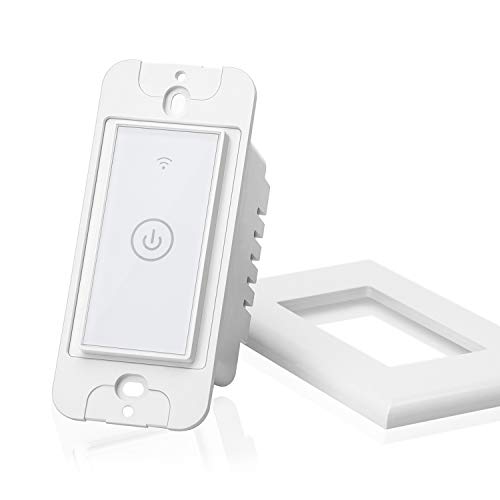
Smart switches replace your existing wall switches and give you permanent, wiring-level control of hardwired fixtures. Unlike smart bulbs, they work even when someone uses the physical switch. Installation takes 15-30 minutes and requires turning off a circuit breaker. Most single-pole installs are straightforward if you're comfortable with basic electrical work.
Best starter
TP-Link
Kasa Smart Wi-Fi Light Switch KS205
$19.35 as of Jun 22, 2026
★★★★★Our rating· In Stock
Reliable, no-hub Wi-Fi switch that works with Alexa, Google Home, and Apple HomeKit. Straightforward wiring, clear instructions, and an app that handles schedules and voice control. One of the best-selling smart switches for good reason.
What we like
Works with Alexa, Google Home, and HomeKit without a hub
Clear wiring instructions, most installs take under 20 minutes
Built-in schedules and countdown timers in the Kasa app
What to know
Requires a neutral wire; check your wall box before ordering
Cheaper than Kasa and includes native Apple HomeKit support, which is rare at this price. The app is basic but functional. A solid second switch or the right pick if HomeKit is your priority on a tight budget.
What we like
Native Apple HomeKit support at a genuinely budget price
The most reliable smart switch system on the market. Lutron's Clear Connect RF protocol is faster and more dependable than Wi-Fi and doesn't require a neutral wire. The kit includes the Smart Bridge hub, so automations run locally. Premium price is justified when reliability actually matters.
What we like
Clear Connect RF is faster and more reliable than Wi-Fi switches
No neutral wire required, works in virtually all homes
Integrates with SmartThings, HomeKit, Alexa, and Google
What to know
Requires Lutron Smart Bridge hub (included in starter kits)
Individual switches are $45+, expensive for whole-home installs
Sensors are where automation becomes genuinely useful rather than a novelty. A door sensor alerts you when the front door is left open. A motion sensor turns lights on as you enter a room and off two minutes after you leave. A water leak sensor under the sink can save thousands in damage. Most sensors use Zigbee and require a compatible hub.
Best starter
Aqara
Door and Window Sensor
$17.99 as of Jun 22, 2026
★★★★★Our rating· In Stock
Around $10-12 each with excellent build quality. Zigbee 3.0, roughly 2-year battery life on a CR2032, and works with SmartThings, Hubitat, Home Assistant, and Apple HomeKit. Small and unobtrusive. Buy several: front door, back door, garage, medicine cabinet.
What we like
Around $10-12 each with genuinely good build quality
2-year CR2032 battery life, no constant recharging
Works with SmartThings, Hubitat, Home Assistant, and HomeKit
What to know
Zigbee only, requires a compatible hub to function
Small sensor can be tricky to align on irregular door frames
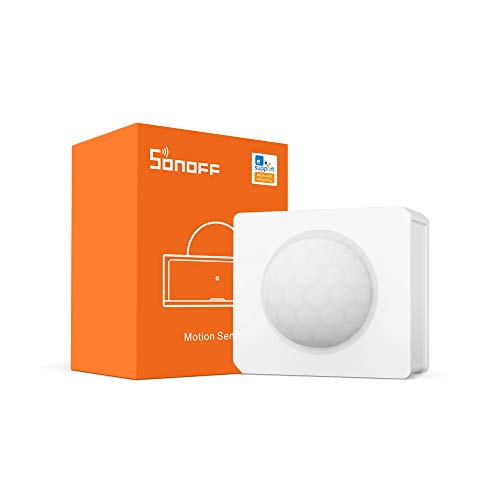
Under $15 and one of the most recommended motion sensors in the Home Assistant community. Works with SmartThings, Zigbee2MQTT, and Hubitat. Detection zone covers about 20 feet at 110 degrees. Not as quick as premium sensors but perfectly usable for triggering lights in a hallway or bathroom.
What we like
Under $15 and well-regarded across the Zigbee community
Works with SmartThings, Hubitat, and Home Assistant
20-foot detection range covers most residential rooms
What to know
60-second motion reset delay; lights linger after you leave
Uses millimeter-wave radar instead of PIR motion detection. It knows when a room is occupied versus simply empty, detecting stillness (someone reading, sleeping, working) that any PIR sensor would miss. This is the sensor that makes 'turn lights off when room is empty' actually work. Compatible with HomeKit, Home Assistant, and Homebridge.
What we like
Radar-based presence detection catches still occupants PIR misses
Detects multiple zones within one room simultaneously
Works with HomeKit, Home Assistant, and Homebridge natively
What to know
Around $60, expensive for a single sensor
Requires a USB-C power outlet, not battery-powered
Smart bulbs work best for floor lamps and table lamps where you control them from your phone anyway. For overhead fixtures, smart switches are the better call (a smart bulb goes dead the moment someone flips the wall switch off). Color-changing bulbs are a satisfying first purchase. Even a $10 Zigbee bulb delivers the same scenes as a $20 Hue.
Best starter
TP-Link
Kasa Smart Color Bulb KL135 (2-pack)
$20.89 as of Jun 22, 2026
★★★★★Our rating· In Stock
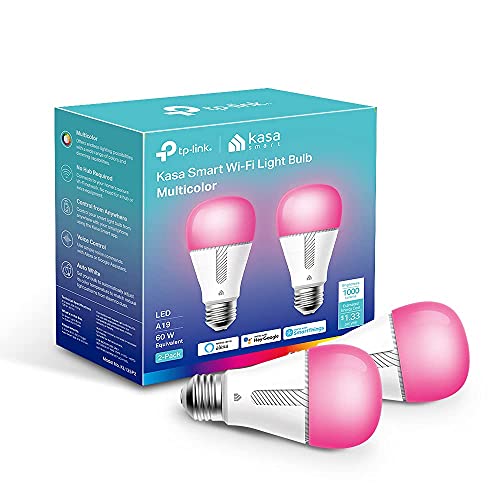
Full RGB color, no hub required, under $25 for two. Kasa's app handles scenes and schedules with zero friction. The right pick for a bedside lamp or floor lamp where you want color and dimming without a hub investment. Works directly with Alexa, Google, and HomeKit.
What we like
Full RGB color with dimming, no hub needed whatsoever
Under $25 for two bulbs, best no-hub color value available
Works with Alexa, Google Home, and Apple HomeKit
What to know
Wi-Fi only; weak router signal causes responsiveness issues
Smart bulbs break when someone flips the wall switch off
★★★★☆Our rating· Only 1 left in stock - order soon.
Zigbee bulbs that don't act as Zigbee repeaters (unusual, but intentional). Works with SmartThings, Amazon Echo 4th Gen, and Home Assistant. Around $8-10 per bulb. The pick when you already have a Zigbee hub and want affordable color bulbs.
What we like
Around $8-10 per bulb, cheapest Zigbee color path with a hub
Works with SmartThings, Echo 4th Gen, and Home Assistant
The gold standard of smart lighting. Comes with a Hue Bridge hub, three full-color RGBW bulbs, and an app that handles scenes, routines, and sunrise/sunset sync. More expensive than alternatives, but the reliability is noticeably better and the ecosystem (gradient strips, outdoor lights, light bars) grows with you.
What we like
Includes Hue Bridge hub for local processing and fast response
Full RGBW color plus tunable white from 2000K to 6500K
Most smart home projects stall after the first hub. Here's what the first month actually looks like: not everything connected at once, but one room done properly, one automation that changes your morning, and the confidence to keep building.
Smart home automation has a well-earned reputation for starting simple and spiraling into a rabbit hole. You buy one smart plug, and three weeks later you’re watching YouTube tutorials about YAML automations at midnight. That’s not a flaw, that’s the hobby. But knowing the shape of that first month makes it a lot less frustrating.
Here’s what actually happens, week by week, and the things that matter versus the things that feel like they matter but don’t.
Week 1: Pick your platform and buy three things
The single most important decision you’ll make isn’t which hub to buy. It’s whether you want cloud-managed or local-first control.
Cloud-managed (SmartThings, Amazon Alexa as hub): Setup takes 20 minutes. You get a polished app, broad device compatibility, and remote access from day one. The tradeoff is that your automations pause when the vendor’s servers go down, and vendors can change pricing or features whenever they want. For most beginners, this is the right call: get it working first, then migrate if the limitations bother you.
Local-first (Hubitat, Home Assistant): Everything runs on hardware in your home. Automations fire in under a second and keep running when your internet is out. The tradeoff is a steeper setup (plan a few hours for Hubitat, a full weekend for Home Assistant). If you’re comfortable with routers and don’t mind reading documentation, this path pays off fast.
Don’t split the difference on week one. Pick a lane.
Once you’ve decided, buy three things: your hub, two smart plugs, and a door sensor. Plug in the hub, connect a lamp via smart plug, and set your first automation: on at sunset, off at 11pm. That’s it for the first few days. You’re not automating the house; you’re learning how the system works with one low-stakes device.
This is where things get real. Smart plugs are great for lamps and fans, but for overhead lights (the ones everyone in your household uses), you need a smart switch.
The install process:
Turn off the circuit breaker for the room
Unscrew the existing switch and pull it out from the wall box
Look for a white wire connected to the switch (the neutral wire). If you see one, you’re good. If all the wires are black, some smart switches won’t work in your wall without additional wiring.
Connect the new smart switch following its included diagram: black to LINE (hot from breaker), black to LOAD (to the fixture), white to NEUTRAL, bare copper to GROUND
Tuck everything back in, screw it in, turn the breaker back on
Most installs take 15-30 minutes. The anxiety peaks when you pull the switch out and see a tangle of wires. They are almost always simpler than they look.
Once the switch is installed, you gain something important: the physical switch still works. Anyone in your household can turn the light on and off normally, and your automations also work. This is why smart switches are better than smart bulbs for overhead fixtures. A smart bulb in a ceiling fixture goes dead the moment someone flips the wall switch off, and then you’re the person explaining why the lights aren’t working.
Set one automation on your new switch: turn on at 6:30am, dim to 30% at 9pm. That’s circadian lighting, and it’s quietly the most useful thing in a smart home.
Week 3: Sensors and your first real automation
A motion sensor in the right place changes the way you use your home. Put one in a bathroom or hallway and set the lights to turn on automatically when you enter and off 2 minutes after motion stops. You’ll never touch that switch again. Within a week, it feels like the obvious default.
A few things to know about motion sensors before you buy:
PIR vs radar. Most affordable motion sensors use passive infrared (PIR) detection, which detects heat movement. They work well for most cases, but they don’t detect someone sitting still (reading, watching TV, sleeping). If you want lights that stay on while you’re quietly working at a desk, you need a radar-based presence sensor (like the Aqara FP2). Buy the PIR sensor first; upgrade to radar if the “lights turning off while I’m sitting here” problem bothers you.
Reset time. Most PIR sensors have a motion “reset” period (typically 60 seconds) where they won’t trigger again after detecting motion. This prevents false positives but means your lights may stay on 60-90 seconds after you leave. Adjust this in your hub’s settings if it bothers you.
Zigbee vs Wi-Fi. Most good sensors use Zigbee, not Wi-Fi. They require a compatible hub, but the battery life is measured in years rather than months, and they don’t add load to your router.
By week four, you have a hub, a few plugs, a switch, and a sensor. Now the question is: what automation would actually make your life better?
The temptation is to build something elaborate: a morning routine that reads you the weather, adjusts the thermostat, turns on the coffee maker, and plays music. That’s fine eventually. But elaborate automations are fragile. They break when one device is offline, when your schedule changes, or when you’re not the only person in the house.
The automations that stick are simple:
Porch light turns on at sunset, off at midnight
Kitchen light turns off automatically if left on for 3 hours
Alert if the garage door is open after 10pm
“Goodnight” routine from your phone: everything off, door lock engaged
Start there. One trigger, one action. When that runs reliably for two weeks, add another.
The other thing that happens in week four: you start noticing what you wish was automated. The front door left open. The basement light nobody turns off. The bedroom lamp your partner still controls manually. That’s the list for month two.
The “my family won’t use the app” problem. Automation doesn’t require the app. Physical switches still work. Voice commands still work. The app is for setup and edge cases. If you make switches work normally, adoption is effortless.
Mixing ecosystems. A Kasa switch works with Alexa. A Hue bulb works with HomeKit. A Zigbee sensor works with SmartThings. Buying from too many ecosystems creates integration headaches. Pick one hub and use devices that are certified compatible with it.
Over-automating too early. The instinct to automate everything at once produces a partially-finished system full of broken routines. One room, done properly, working reliably. That’s more satisfying than ten rooms half-done.
Smart bulbs in overhead fixtures. If anyone else lives with you, they will flip the physical switch, the smart bulb will lose power, and the automation will stop working. Use smart switches for anything with a wall switch.
What month two looks like
If week four went well, month two is about expanding carefully: second bedroom, kitchen switches, a contact sensor on a window, possibly a smart thermostat. Each addition uses everything you learned in month one. The second switch takes 10 minutes. The third sensor connects automatically. The automations you write are more confident.
The hobby has a natural momentum. By month three, you’ll be reading about YAML automations, Matter device support, and local voice processing, not because you need to, but because you’re curious. That’s the hobby telling you it has room to grow.
Save your money
What you don't need yet
Beginners get pressured to buy a lot of stuff that doesn't help them play
better. Here's what we'd skip on day one.
Smart thermostat (Nest, Ecobee) — Genuinely worthwhile, but buy it after establishing your hub ecosystem. Thermostats integrate better as part of a whole-home setup than as standalone devices.
Smart door locks — These have real security implications. Learn your system's reliability first, then add access control when you trust the platform.
Smart security cameras — Cameras are a separate ecosystem with their own apps, storage, and privacy decisions. Keep them separate from your automation hub until you know what you're doing.
A Matter-only hub — Matter is the new cross-brand standard and improving fast, but the device catalog is still limited. Wait another year before centering your whole setup around it.
Voice assistants in every room — One central Echo or Google Home handles 90% of voice control needs. Multiple speakers are a comfort upgrade, not a functional requirement.
Smart appliances (washer, dryer, fridge) — Expensive to replace and short on practical automation use cases. A notification that your laundry is done is rarely worth the appliance upgrade cost.
First week
Your first seven days
A short, real plan to get from gear-on-doorstep to actually playing.
Decide cloud-managed (SmartThings, Alexa) or local-first (Hubitat, Home Assistant). This shapes every device you buy after it. · Action
Check for a neutral wire before ordering more switches. Look for a white wire in your existing wall box. Most post-1985 homes have one. · Action
FAQ
Common questions
Do I need a hub to start a smart home?
No. Wi-Fi smart plugs and switches work directly with Alexa, Google Home, or Apple HomeKit without a separate hub. A hub becomes useful when you add Zigbee or Z-Wave devices, which scale better past 15 devices. Start without one; add a hub when you hit that threshold.
What's the difference between Zigbee, Z-Wave, and Wi-Fi?
Wi-Fi uses your existing router (easy, no hub needed, adds router load). Zigbee and Z-Wave are low-power mesh protocols that require a hub but scale better to 20-100+ devices. Zigbee has more affordable devices; Z-Wave tends to be higher quality and pricier. Both are reliable.
What happens if my internet goes down?
Wi-Fi cloud devices and Alexa routines stop working without internet. Local hubs like Hubitat and Home Assistant keep running. Philips Hue and Lutron Caseta also process locally. If reliability matters, buy local-processing gear from the start.
What is Matter and should I care?
Matter is an open standard that lets devices from different brands work together without cloud accounts. Launched in 2022 and genuinely improving. The device catalog is still limited compared to Zigbee and Z-Wave. Buy Matter-compatible where you can, but don't let it limit your choices yet.
Are smart home devices a security risk?
They can be, particularly cheap unbranded devices from unknown manufacturers. Stick to brands with documented security practices (TP-Link, Aqara, Philips, Amazon, Samsung). Keep firmware updated. Put IoT devices on a separate VLAN if your router supports it.
How many devices do I need to get started?
Three: a hub, two smart plugs or switches, and one sensor. That's enough to build a real automation. Resist buying 20 devices at once. Start slow, learn what actually improves your day, then expand deliberately.
As an Amazon Associate, JustBeginning earns from qualifying purchases.
We may also earn commission from other affiliate programs linked on this
page. Editorial recommendations are independent; we don't choose
products based on commission rates.
Product prices and availability are accurate as of the date and time
indicated and are subject to change. Any price and availability
information shown on Amazon at the time of purchase will apply.

 Best starter